最近嘗試將一些 Serverless 應用程式搬移到 Google Cloud Run,研究了一下如何使用 Cloud Build 來實現 CI/CD 自動化部署…
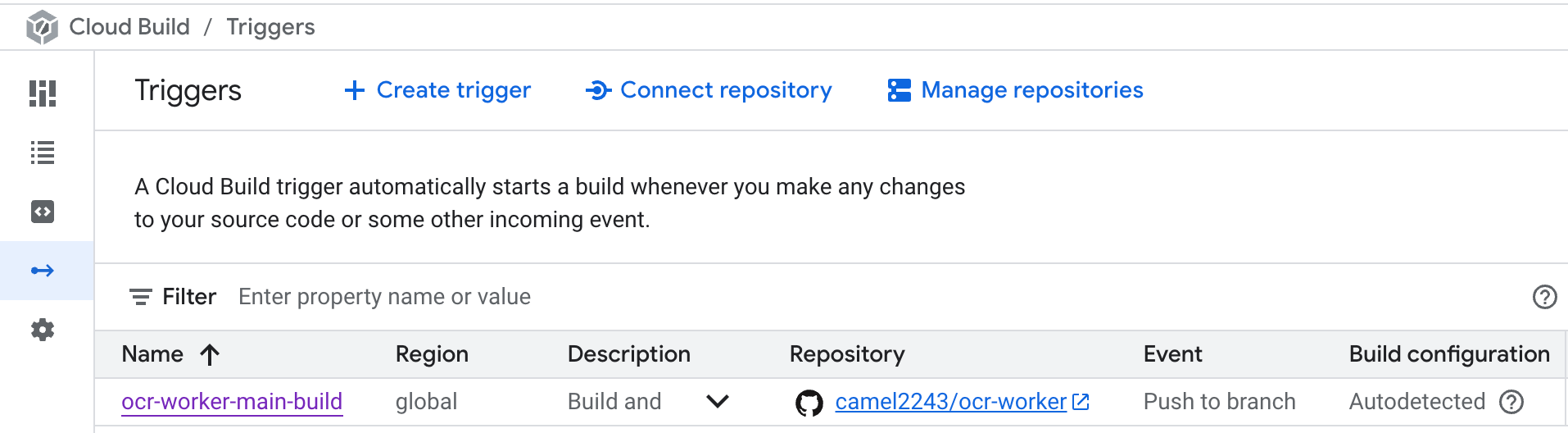
- 至 Cloud Build 的 Triggers 頁面,點擊 「Create Trigger」
- 設定觸發條件,例如有新的 commit 或 pull request 到特定的 branch 時觸發
- 設定 Configuration Type 為
Autodetected,使用cloudbuild.yaml定義部署流程 - 設定有以下權限的 Service Account 來執行 Cloud Build
roles/logging.logWriterroles/artifactregistry.writerroles/run.viewerroles/iam.serviceAccountUser
- 由於 Cloud Run 需要一個 Docker image 上傳至 Google Container Registry,來部署,因此請記得在專案下建立
Dockerfile,並定義如何構建應用程式的 Docker image,例如:
# Dockerfile
FROM node:24-slim

WORKDIR /app

COPY package*.json ./
RUN npm install

COPY . .

ENV PORT 8080

CMD ["npx", "functions-framework", "--target=ocr", "--port=8080"]
- 在專案根目錄下建立
cloudbuild.yaml,定義 Cloud Build 的部署流程,例如:
- 將
PROJECT_ID和SERVICE_NAME替換為你的專案 ID 和 Cloud Run 服務名稱 - 將
REGION替換你的 Cloud Run 服務所在的區域,例如us-central1
# cloudbuild.yaml
steps:
  - name: "gcr.io/cloud-builders/docker"
    args: ["build", "-t", "gcr.io/${PROJECT_ID}/${SERVICE_NAME}", "."]
  # Push the container image to Container Registry
  - name: "gcr.io/cloud-builders/docker"
    args: ["push", "gcr.io/${PROJECT_ID}/${SERVICE_NAME}"]
    # Deploy the container image to Cloud Run
    - name: "gcr.io/google.com/cloudsdktool/cloud-sdk"
    entrypoint: gcloud
    args:
      - "run"
      - "deploy"
      - "${SERVICE_NAME}"
      - "--image"
      - "gcr.io/${PROJECT_ID}/${SERVICE_NAME}"
      - "--region"
      - "${REGION}"
images:
  - "gcr.io/${PROJECT_ID}/${SERVICE_NAME}"

options:
  logging: CLOUD_LOGGING_ONLY
- 嘗試提交新的 commit 到指定的 branch 觸發第 1 步的觸發條件。接著就可以在 Cloud Build 查看部署進度和紀錄,並且在成功部署後,Cloud Run 服務會自動更新到最新的版本 🎉