最近發現我的 Chrome 在存取需要 HTTP Basic Auth 的網站時,總是需要重複輸入使用者名稱與密碼,就算我手動至 AutoFill and Passwords 中新增了 HTTP Basic Auth 的相關資訊,仍然在每次重新整理網頁時跳出空白的登入視窗且不會自動填入上次輸入過的使用者名稱與密碼。
於是這邊架了一個帶有 HTTP Basic Auth 的網址來重現並測試這個問題
網址請參考 👉 https://auth-demo.camel.dev/
如何重現問題
-
至 Chrome AutoFill and Passwords 中新增一組 此網址 的正確使用者名稱與密碼
- Username:
auth_demo_user - Password:
auth_demo_password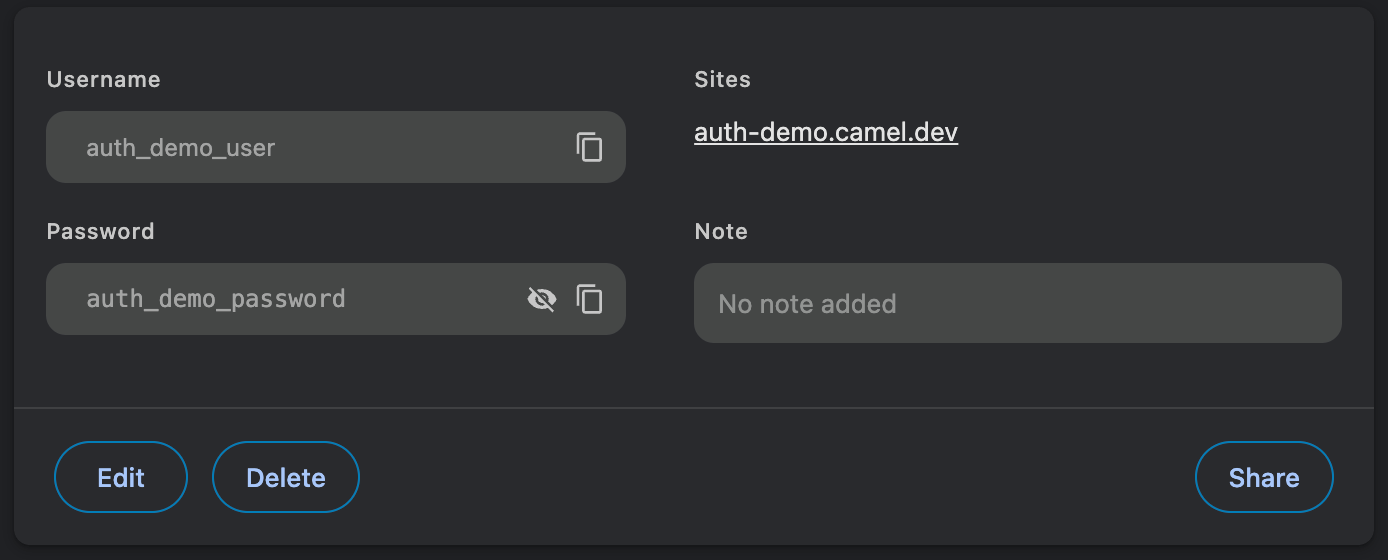
- Username:
-
開啟測試網址 👉 https://auth-demo.camel.dev/
仍然不會自動填入 AutoFill and Passwords 中新增的使用者名稱與密碼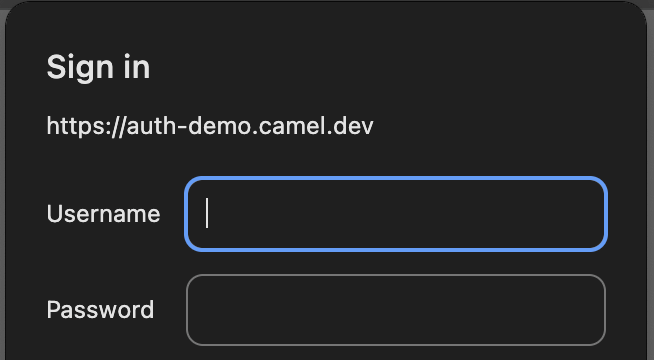
解決方法
-
檢查在 Chrome Password manager 中的 Offer to save passwords 是否有正確開啟

-
如果第 1 步的設定有被其他 extension 控制導致關閉,請暫時
Disable該 extension
(例如: Bitwarden / 1Password)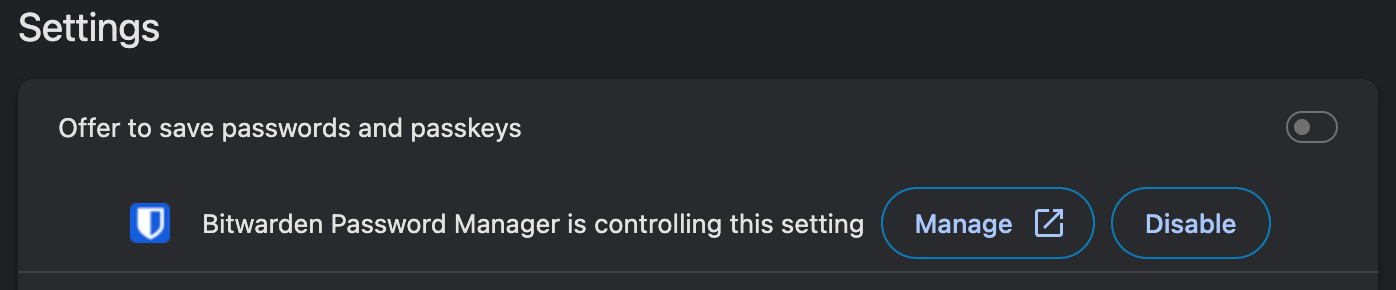
-
開啟測試網址 👉 https://auth-demo.camel.dev/ 並輸入正確的使用者名稱與密碼
- Username:
auth_demo_user - Password:
auth_demo_password
這時候會跳出是否要儲存的視窗,點選 Save 即可順利儲存 HTTP Basic Auth 的相關資訊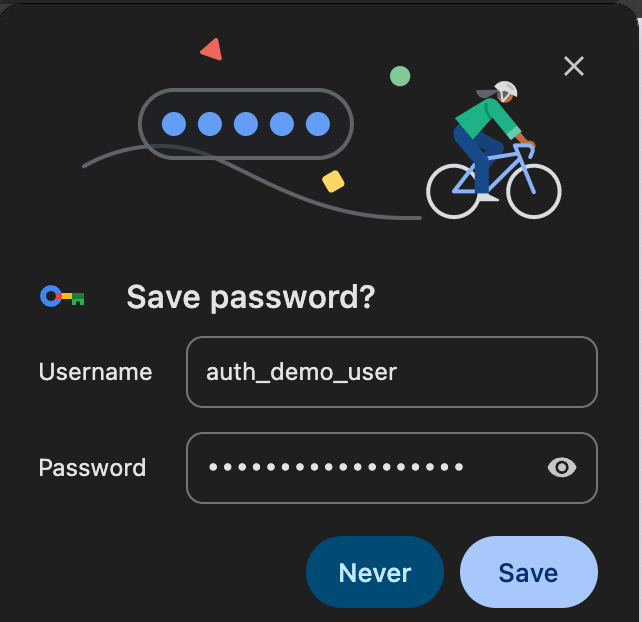
- Username:
-
可以回復第 2 步的原設定,並且將 Chrome 重新開啟 (
chrome://restart) -
再次開啟測試網址 👉 https://auth-demo.camel.dev/ 這時候就會自動填入 HTTP Basic Auth 的相關資訊囉 🎉
心得分享
個人覺得這問題可能跟 Chrome 實作有點關係,因為再次進到 AutoFill and Passwords 中,會發現 HTTP Basic Auth 的相關資訊跟你新增的資訊是完全一樣的,可能是因為 extension 等原因造成 Chrome 沒有正確運作這個自動填入的行為。
另外覺得比較困擾的是 HTTP Basic Auth 的原生視窗要透過密碼管理器的 extension (例如: Bitwarden / 1Password) 自動填入其實有點困難,基本上行為都是要由 extension 的 UI 或連結開啟目標網址,而不是使用者直接在網址列輸入後自動填入原生視窗 🫠